Exit Action Type
The Exit action type is used to stop the current well in test. When executed it will exit out of the entire action sequence. The only required attribute is the action type. An optional set of attributes are available to issue a setpoint. These are the same as defined in the SetPoint action type.
|
Exit Action configuration |
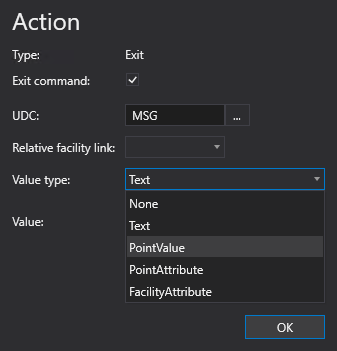
To configure an Exit action
An Exit action type can be configured from several different places within the well test configuration control. However, the base configuration is always the same. Perform the following steps to configure this type of action, referring to the property definitions below:
- Click to Add action from the drop-down menu.
- Select the Edit action type from the Action type list. The action's properties will appear on the right.
- Select the Exit command check box to exit out of the entire action sequence.
- If the Exit command check box is selected, the Exit action is executed, and all remaining actions of the current command are skipped, either moving on to the next configured command or putting the Header into an Idle state.
- If the Exit command check box is not selected, the Exit action is executed, the currently executing action (e.g., a Monitor or Test action) is completed, and the next action configured in the Header is run.
- Click the browse button to open the Select UDC dialog box and select an appropriate UDC.
- Optional. Select a relative facility tag from the Relative facility link drop-down menu.
- Select a Value type from the drop-down menu. Options include None, Text, PointValue, PointAttribute, and FacilityAttribute.
- If Text is selected, enter the text Value used in the action.
- If PointAttribute is selected, select a point Attribute from the drop-down menu.
- If FacilityAttribute is selected, select a facility Attribute from the drop-down menu.
- Click OK to accept the configuration.
Action Properties
The properties for the Exit action type are described below.
| Property | Description | XML |
|---|---|---|
|
Type |
Specifies the action type for the action. |
|
|
Exit command |
Indicates whether to exit out of the entire action sequence. If the Exit command check box is selected, the Exit action is executed, and all remaining actions of the current command are skipped, either moving on to the next configured command or putting the Header into an Idle state. If the Exit command check box is not selected, the Exit action is executed, the currently executing action (e.g., a Monitor or Test action) is completed, and the next action configured in the Header is run. ExampleSay you have a Condition in a Monitor or Test action that when met you want to exit the action and continue in the sequence, you would not select the Exit command option. However, if the sequence is in a Monitor or Test action and checking for the communication status of a UIS command, and you want to quit the entire command if the UIS command isn’t successful, then you would select the Exit Command option. |
|
|
UDC |
Specifies the UDC to use for the point. Click the browse button to open the Select UDC dialog box and select an appropriate UDC. |
|
|
Relative facility link |
Specifies the relative facility tag to use for the action. E.g., Separator Note: |
|
|
Value type |
Specifies the Value type (valueType). There are five possible values:
|
|
|
Value |
If the Value Type (valueType) is Text, then this field specifies the text used in the action. Does not appear/is not required if the Value Type (valueType) is None or Text. |
|
|
Attribute |
Specifies a value, a point attribute, or a facility attribute. If the Value Type (valueType) is PointAttribute or FacilityAttribute, then this field indicates which attribute will be used. The available values to use for this field can be found in the CygNet.API Help file under the CygNet.Data.Core > CygNetCoreProperties.CygNetProperty Enumeration section. |


